Forgotten Password
Important note: You can only use the option, for which you have entered valid data into your mail.co.uk account. If you have created your account anonymously, or your provided details such as alternative E-mail address or mobile phone number are no longer valid, you will be not able to reset your password. The reason is that we need to verify the identity of a user, following our security and legal stipulations.
If you have forgotten the password for your mail.co.uk account, you can reset it on our forgotten password page.
-
Go to our login page.
-
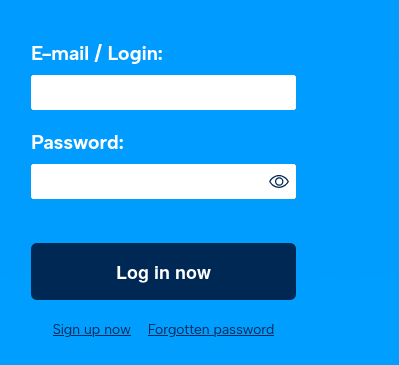
Below the actual login fields you will find the link "Forgotten password?", Click on this link.
-
On the "Forgotten password" page, you have various options for resetting your password.
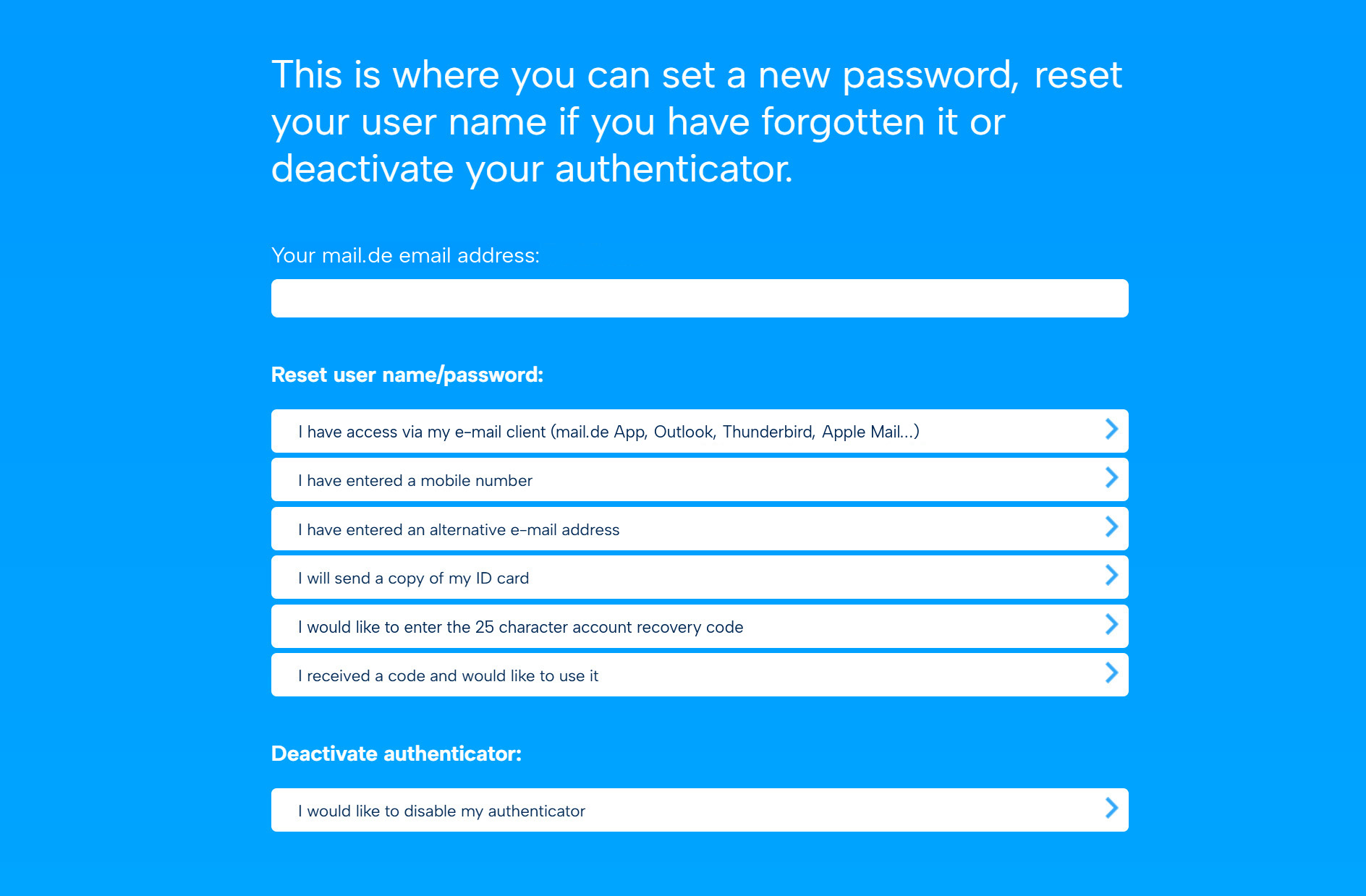
Option 1 "I still have access via my e-mail client (Outlook, Thunderbird, Apple Mail)"
If you still have access to your account through an e-mail-program, please use this option.
-
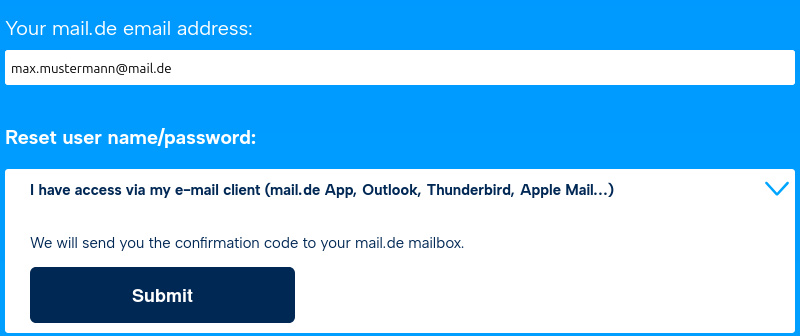
Enter your mail.co.uk address under "Your mail.co.uk address".
-
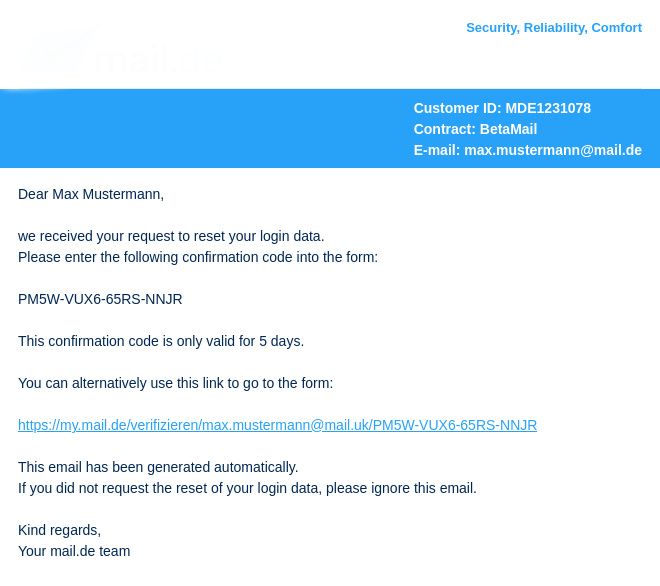
Within a few seconds you will receive an email with the confirmation code, please click on the link.
-
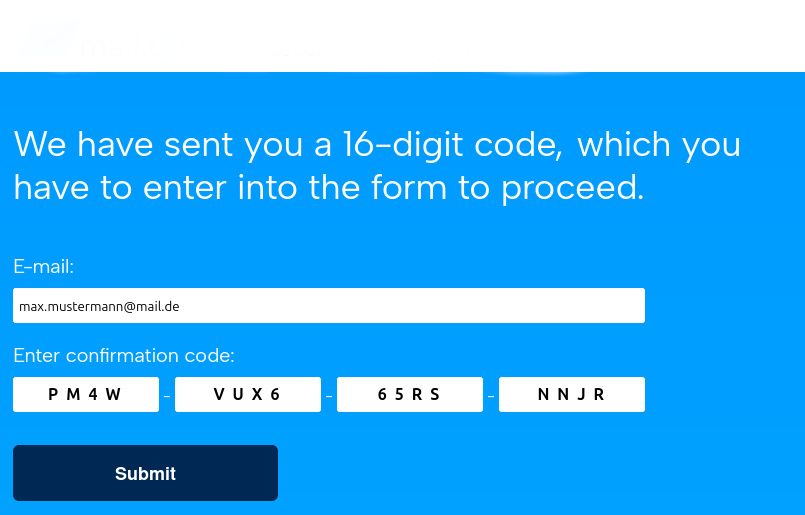
The browser opens the forgotten password page and the confirmation code is already entered. Please click "Submit".
-
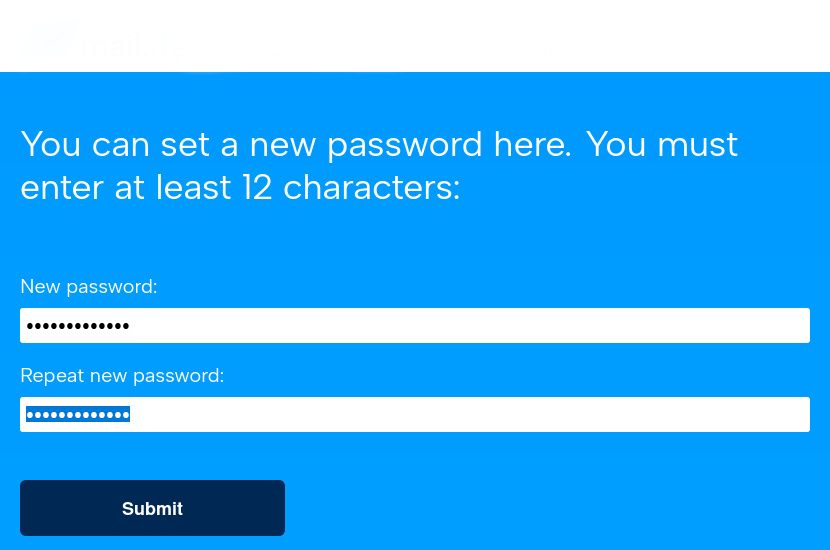
On the following page you can determine a new password. Enter the new password into "New password" and confirm the entry in "Repeat new password:".
-
Click on the "Submit" button.
-
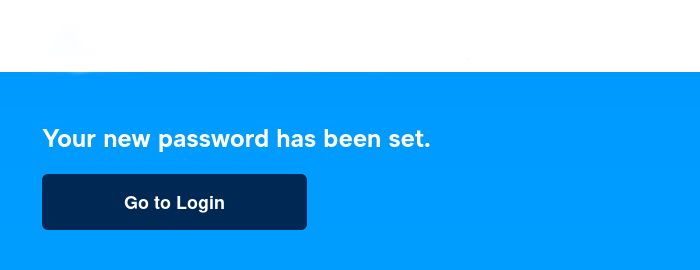
The new password has been set!
Option 2 "I have saved an alternative mobile phone number"
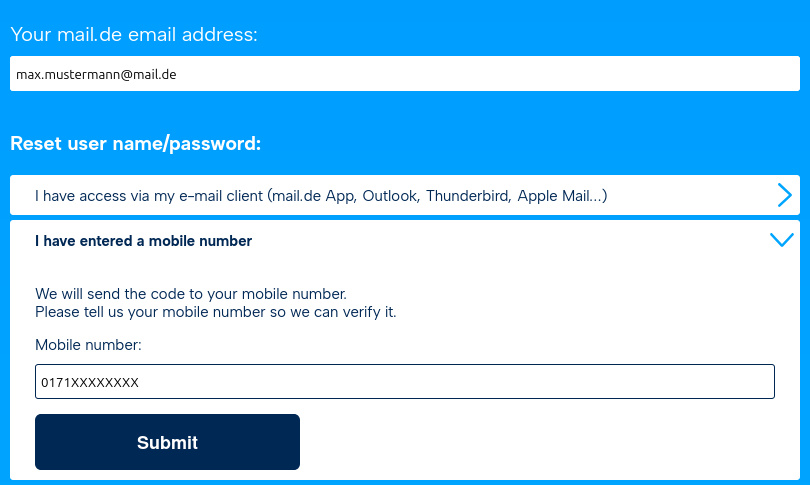
If you have saved a mobile phone number for your account, you can receive the confirmation code via SMS.
-
Enter your mail.co.uk address under "Your mail.co.uk address".
-
Enter the stored mobile phone number under "Alternative mobile number"
-
Click on the "Submit" button.
-
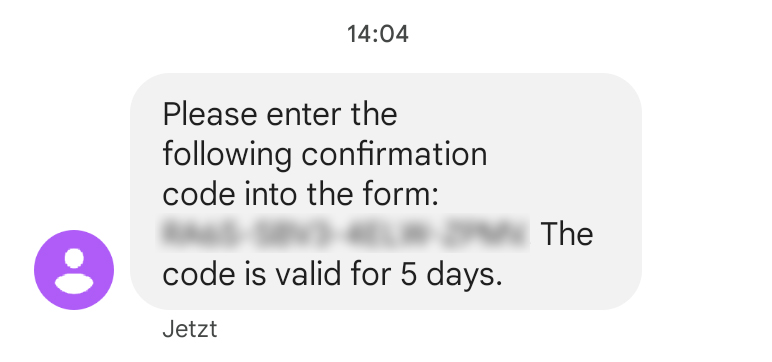
You will receive an SMS with your confirmation code within a few minutes.
-
Enter the confirmation code from the SMS into the appropriate field, and click on "Submit".
-
On the following page you can determine a new password. Enter the new password into "New password" and confirm the entry in "Repeat new password:".
-
Click on the "Submit" button.
-
The new password has been set!
Option 3 "I have saved an alternative email address"
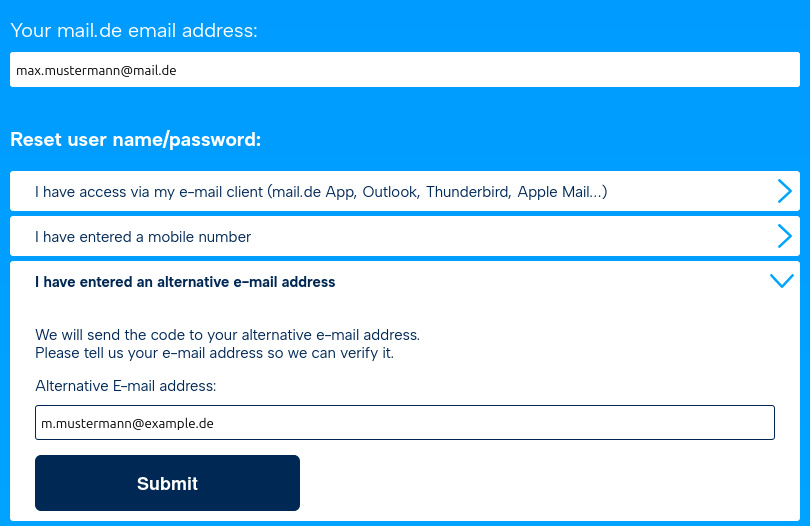
If you have saved an alternative e-mail address for your mail.co.uk account, you can receive the confirmation code to this address.
-
Enter your mail.co.uk address under "Your mail.co.uk address".
-
Enter the stored alternative E-mail address under "Alternative E-mail address"
-
Click on the "Submit" button.
-
You will receive an E-mail with your confirmation code within a few minutes.
-
Enter the confirmation code from the received E-mail into the appropriate field, and click on "Submit".
-
On the following page you can determine a new password. Enter the new password into "New password" and confirm the entry in "Repeat new password:".
-
Click on the "Submit" button.
-
The new password has been set!
Option 4: "I will send you my ID card"
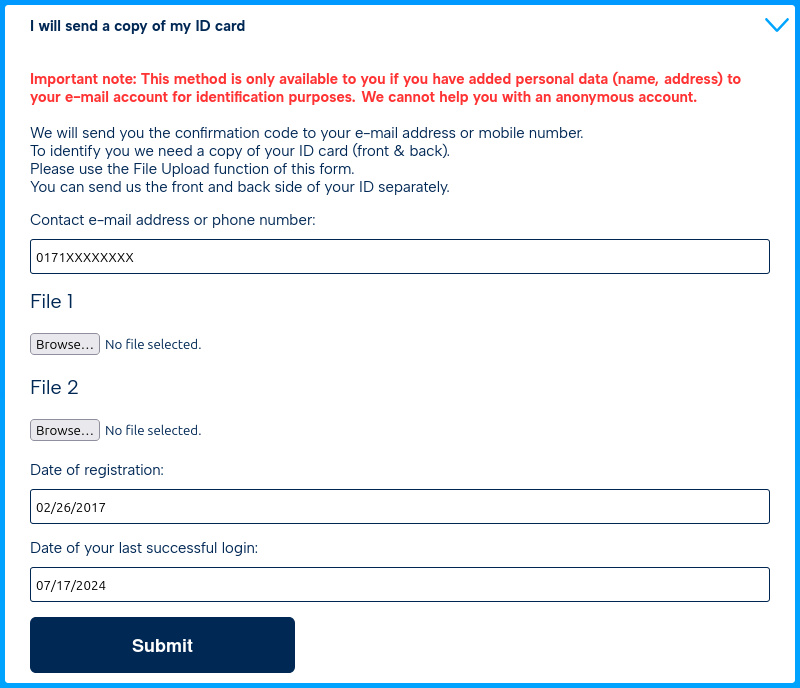
If you have not registered an alternative email address or phone number, or if these are no longer valid, you can also send us a copy of your ID card. The support team will verify the information against your account and then send the verification code to your chosen phone number or email address.
-
Enter your email address for your "mail.co.uk account".
-
Under "Contact email address or phone number", enter the email address or phone number where the verification code should be sent. For "File 1" and "File 2", upload the front and back of your ID card. The most common file formats are supported (e.g., ".jpg", ".pdf").
Then, enter the security code shown in the image and click the "Submit" button.
-
Within 24 hours (Monday – Friday), the verification code will be sent to your chosen contact method. No processing occurs on Saturday or Sunday, so the code will be sent later if requested during the weekend.
-
Depending on the contact method, you will receive an email or SMS and should follow the instructions provided there.
Option 5: "I want to enter my 25-digit password recovery code"
In your mail.co.uk account, you can generate a 25-digit code and use it to reset your password via this option. The code is generated in the mail.co.uk Setup & Security Assistant.
You should save the code externally so that you can access it whenever you need it.
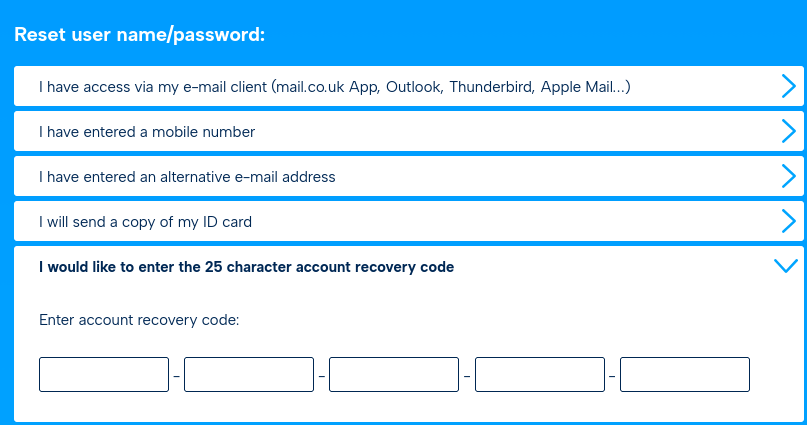
After entering the 25-digit code into the designated fields, click "Submit". The fields to set a new password will appear immediately afterward.
General Notes on Password Reset
- The sent verification code is valid for only three days.
- Only German phone numbers are supported as a contact method.
- After resetting the password, you must also update the new password in all email programs you use.
- In the "mail.co.uk Mail" app, the password must also be updated to the new one.

